

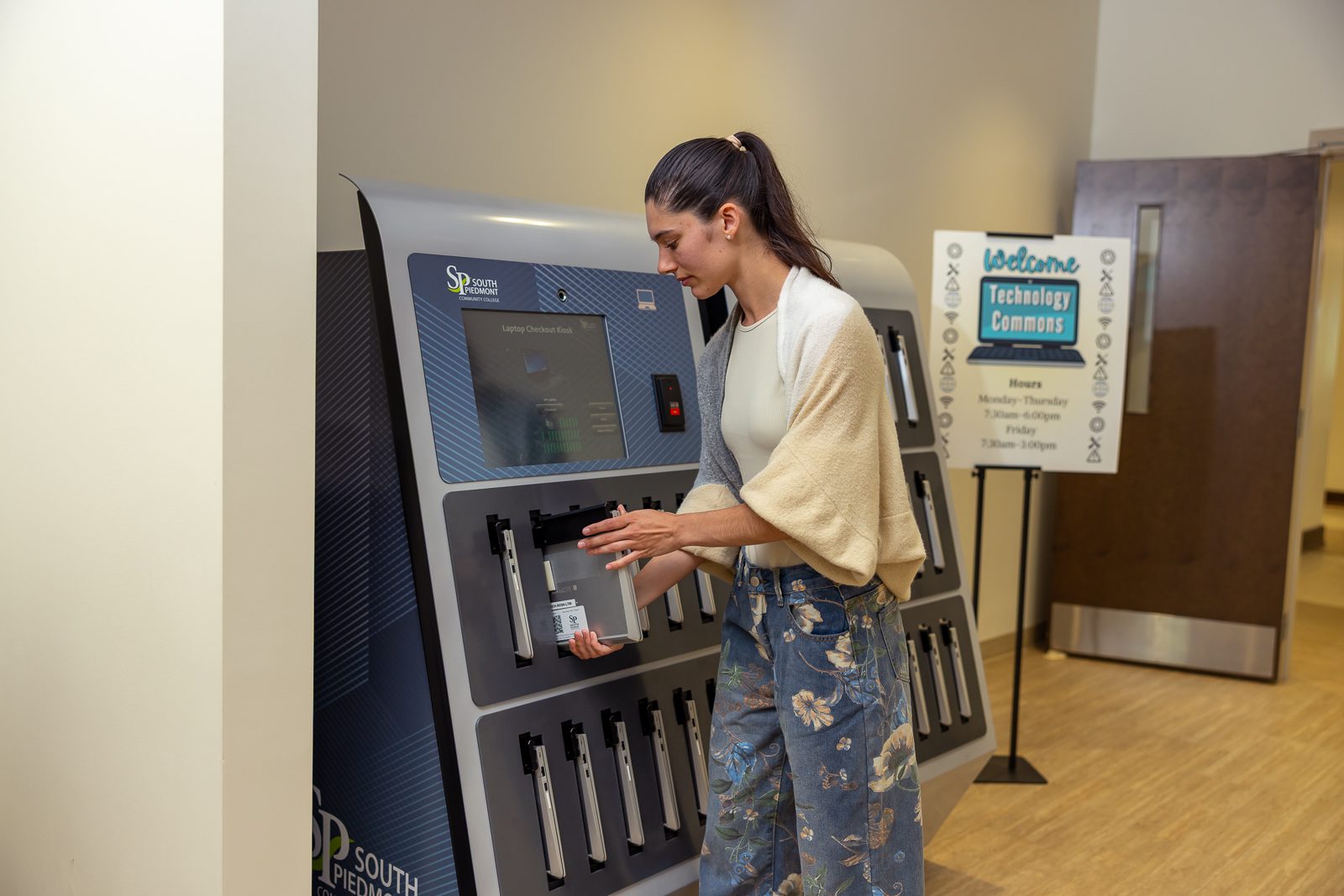
We’re Here To Help You
When technology is giving you trouble, there’s no better place to turn than South Piedmont’s Tech Commons.
Tech Commons Hours
Monday-Thursday: 7:30 a.m.-5 p.m.
Friday: 7:30 a.m.- 3 p.m.
Office Locations
Old Charlotte Highway campus: Room 3145, First Floor, Main Building
L.L. Polk campus: Horne Library
If you’re a new South Piedmont student, be sure to attend orientation to learn more about tech resources and support.
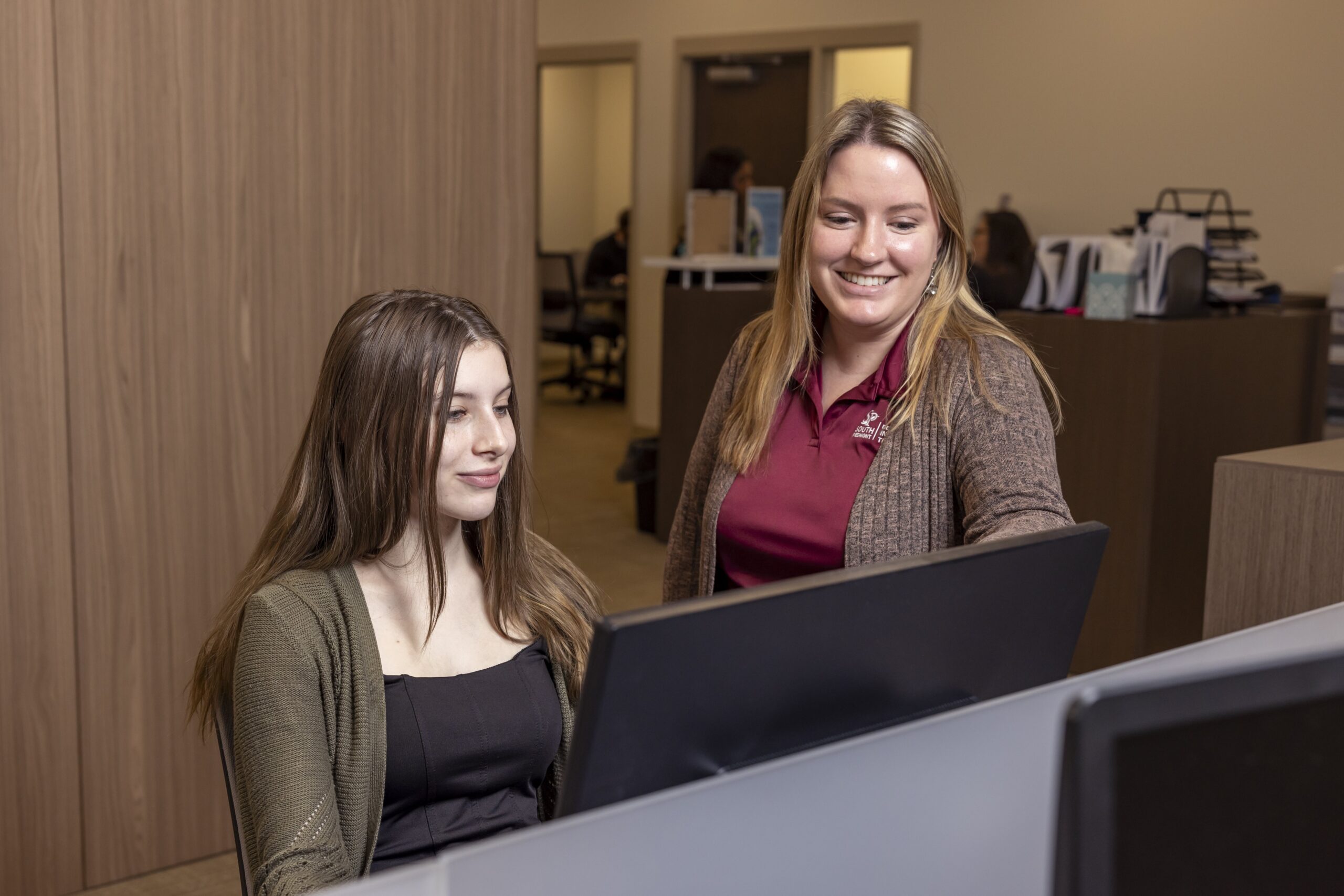
Locked out of your student accounts? Need to change your password? Having trouble accessing Canvas? Not to worry! Our Tech Commons provides front-line support to both students and employees. Best of all, our Tech Commons team is just a phone call or email away — or stop by and get help in person. At South Piedmont, a tech issue will never stand between you and your education.
Are you interested in an IT Internship? We offer a robust experience that comes with certifications from each area of IT. On the job training, skill building, professional develop and learning how an IT organization operates. Fill out the Interest Form.
FAQs
Students will be provided with an SPCC email address that includes access to the Microsoft O365 suite: Outlook, Teams, Word, PowerPoint, Excel & more.
After students have received their acceptance email from the college, students will receive the Action Required Student Account setup email. This email will detail all the steps necessary to log into your account. If you are returning student and it has been over a year, your account will not retain old passwords so please follow the instructions.
Account access issues are handled through the Tech Commons Service Desk you can email techhelp@spcc.edu or call 704-290-5852.
Multi-factor authentication is an added layer of protection to your account. We ask that you secure your account with a strong password and also use a second step of authentication using the Microsoft Authenticator Application.
A student’s digital data will be removed upon one year of student inactivity. At that point, the student account will no longer have access to email, Microsoft Teams or OneDrive data. Students should backup any digital resources they need to retain after finishing their classes to other media.
Your campus email and password are used for all SPCC student platforms which are listed below:
- Self Service: Where you register for courses, make payments, view unofficial transcripts
- Canvas: Where you access your courses and course materials. *Some courses will also use 3rd party tools such as McGraw Hill Connect, Cengage and Pearson. These 3rd party links will be accessible from your Canvas course.
Email: SPCC is a Microsoft school and students have access to Microsoft tools such as Outlook Email, Microsoft Teams, and O365 applications such as PowerPoint, Excel and Word.
A student’s digital data will be removed upon one year of student inactivity. At that point, the student account will no longer have access to email, Microsoft Teams or OneDrive data. Students should backup any digital resources they need to retain after finishing their classes to other media.
Request out of country access by emailing techhelp@spcc.edu our agents will provide more details in the ticket request.
Student Technologies & Support
As a South Piedmont student, you’ll use a variety of systems and platforms, which we detail for you here. For more information and training on the different technologies you will use as a student, attend a new student orientation. Sign up for an orientation session at either the L. L. Polk campus or the Old Charlotte Highway campus.
Aviso is an online system that allows you to connect and engage with the College to ensure your academic success. Using Aviso, you can find your academic advisor and set up an appointment, create and review your individual academic plan, and communicate with College faculty and staff members as needed to reach your academic goals.
Canvas is the course management system used by the college for all web-enhanced, blended, and fully online courses.
Genio is a note taking tool that has been designed to improve learning, boost grades and reduce stress in the classroom.
With Genio you are able to:
● Record your lectures, transcribe audio, add classroom visuals and personalize your notes
with text, images or doodles.
● Practice with AI quizzes, and get to the point with summary outlines.
Genio is available on Web, iOS and Google Playstore.
If you have any questions or would like a demo, please visit. (https://vimeo.com/1088718942)
Use Self-Service to register for classes, view academic progress information, view financial aid information, and pay for your classes.